How to Turn Any Recipe Into Scroll-Stopping Recipe Infographics with AI

If you've ever posted a recipe online and watched it disappear into the feed without a single tap, you're not alone — and the fix isn't a better recipe. It's a better visual. Here's how to use AI to turn your next recipe post into a recipe infographic that actually stops the scroll.
Why Does Recipe Content Perform So Well on Social Media?
The numbers make a strong case for food content. Surveys show that up to 97% of internet users say they've discovered new products or brands through social media. On top of that, roughly 60% of people report using digital recipes more frequently than they did just a year ago. Industry data also shows that more than half of global social media users find cooking videos, DIY guides, and food content more engaging than standard product reviews or tech tutorials.
In short: people are actively looking for recipe content, and they're more likely to stop and engage with it than with almost anything else you could post. That's a huge opportunity — if your post is built to take advantage of it.
Why Isn't a Recipe Alone Enough to Stop the Scroll?
Here's the catch. A list of ingredients and instructions, on its own, won't get anyone to stop scrolling. Feeds move fast, and text-heavy posts are easy to skip right past. What actually captures attention is a vibrant, well-designed image that sits alongside your recipe — something visual enough to interrupt the scroll before someone even reads a word.
In this video I share the compelling data behind sharing a recipe as content. Watch me use Gemini AI to create a branded /fun Infographic to accompany the written recipe to stop the scroll and get your post SHARED and SAVED!
How Can You Turn a Recipe Into an Eye-Catching Infographic? Create your recipe as an infographic with AI
This is where AI tools like Gemini come in. Instead of hiring a designer or fumbling through a design app, you can generate a professional-looking, step-by-step infographic directly from your recipe text.
The process is simple:
Type or paste your recipe (or giveaway copy) into a document you can edit.
Copy that document.
Paste it into Gemini along with a prompt describing what you want.
That's it — no design software required.
What Should You Include in Your AI Image Prompt?
The quality of your infographic comes down to the quality of your prompt. A strong example used in the video looks something like this:
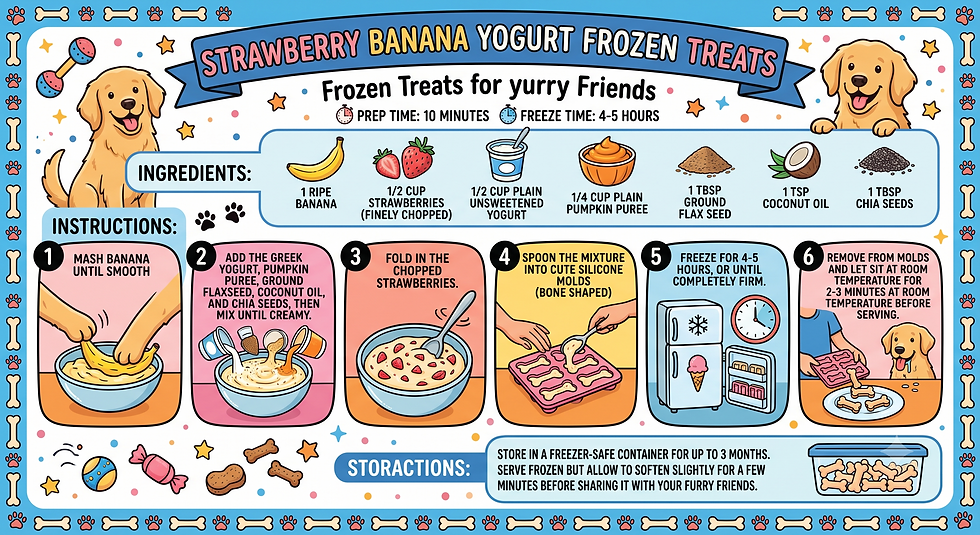
"Create a step-by-step infographic I can download to publish with this recipe for homemade frozen dog treats. Make the illustration fun!" Now paste in your typed recipe.
Notice what's doing the work here: it specifies the format (step-by-step infographic), the purpose (downloadable, ready to publish), the exact recipe content, and a tone direction ("make it fun"). Within moments, Gemini generates a colorful, on-brand graphic built directly from your recipe.
How Do You Make Sure Your Infographic Fits Every Platform?
One detail that's easy to miss the first time: your first infographic might come out in a format that doesn't fit every platform. A square or landscape image, for example, won't look right in an Instagram Story or a TikTok feed built for vertical 9:16 video.
The fix is another quick prompt asking for the same infographic resized to a specific orientation — in this case, 9:16. Within another few seconds, you have a second version ready to go, sized correctly for vertical platforms.

The Takeaway
Once you have both versions — your original recipe and a scroll-stopping infographic sized for every platform — you have everything you need to post that recipe anywhere your audience is scrolling. It's a fast, free way to take content you're already creating and give it the visual hook that turns a skip into a save.

Comments